How to Update the Wireless Firmware on the Keychron J1
If your keyboard is working properly, do NOT update the Bluetooth firmware. Updating carries a small risk and could potentially damage the keyboard. This wireless firmware is only for the Keychron J1.
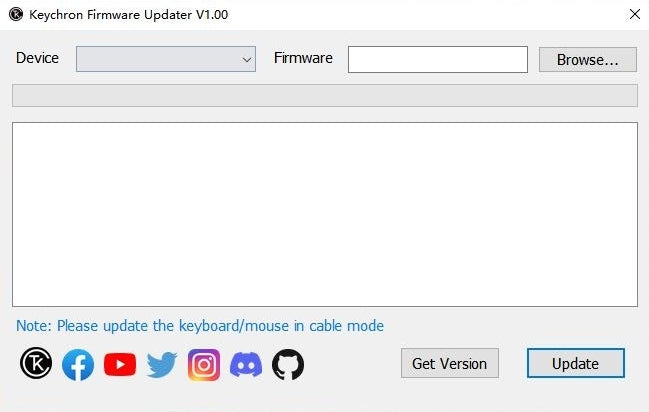
Step 1: Download and open the update tool "Keychron Firmware Updater". (Windows only, the Mac version is still under development. )
Download the Keychron Firmware Updater (Windows)
Step 2: Please download the correct firmware. Download Keychron J1 wireless firmware
Step 3: Slide the mode toggle to Cable and connect your keyboard to a Windows PC, click on the 'Browse' button, select the firmware you have just downloaded, and then click on 'Device' to choose your keyboard model. Here we choose the keyboard Q6 Max.

Step 4:Click on the 'Update' button to start flashing the firmware.
 Step 5: Update completed. You can click on the 'Get Version' button again and check to see if it is the latest version.

- Step 6 (Optional)
(1) If the issue persists in the Bluetooth mode after updating the firmware:
• Switch the keyboard toggle to Bluetooth mode.
• Factory reset the keyboard (hold "fn + J + Z" for 4 seconds).
• The keyboard will lose Bluetooth connection memory after resetting. Please go to your device's Bluetooth settings > select the keyboard and remove/ delete/ unpair / forget it and re-pair the keyboard with your device. (Learn how to pair it on the User Manual or watch the video below.)
(2) If the issue persists in the 2.4G mode:
• Switch the keyboard toggle to the 2.4G mode.
• Perform forcing paring (hold fn + 4 for 4 seconds) and then plug in the receiver to your device. The keyboard should be connected to your device.
Was this article helpful?
0 people found this helpful